task manager
Singl - One Task To-Do List
One task. Right now. Nothing else.
- Weighted-random selection — higher priority tasks surface more often
- Recurring tasks from hourly to yearly
- Home Screen and Lock Screen widgets: complete or skip without opening the app
- Double-tap or circle button to complete; swipe, shake, or skip button to move on
- Back button to revisit the previous task
- Show After — hide a task until the right moment
- Notes field and photo attachments on every task
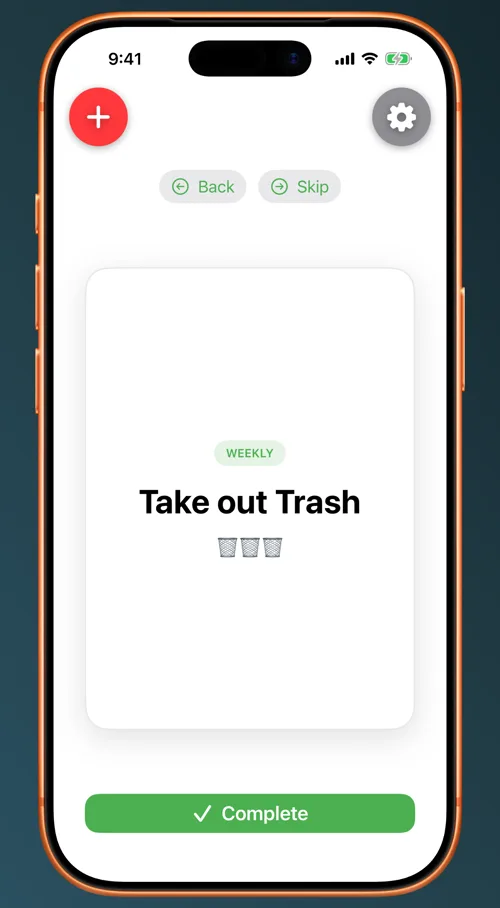
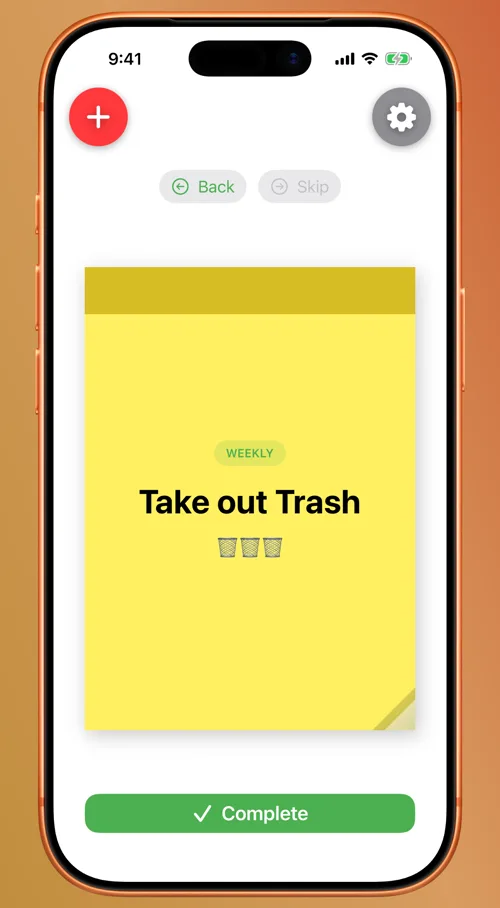
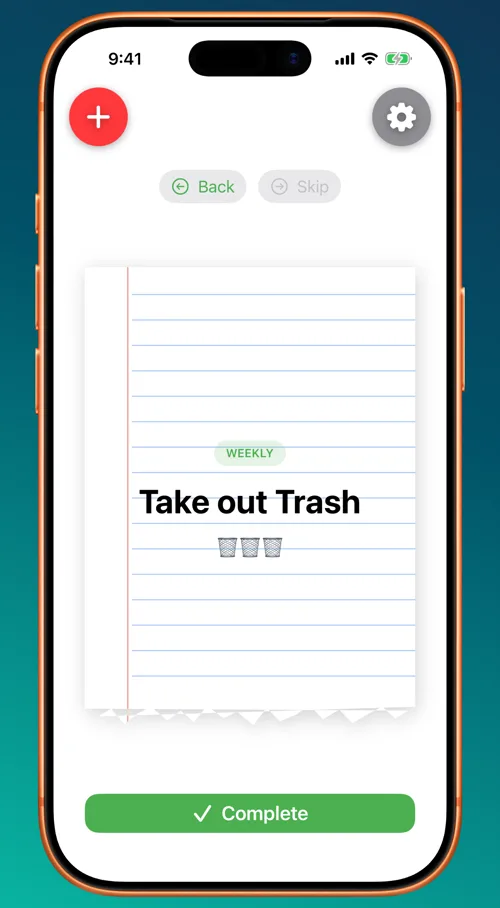
- Four card styles: Card, Note, Paper, and Plain
- Import from Apple Reminders
- Siri & Shortcuts: add tasks or complete by voice
Card
Note
Paper
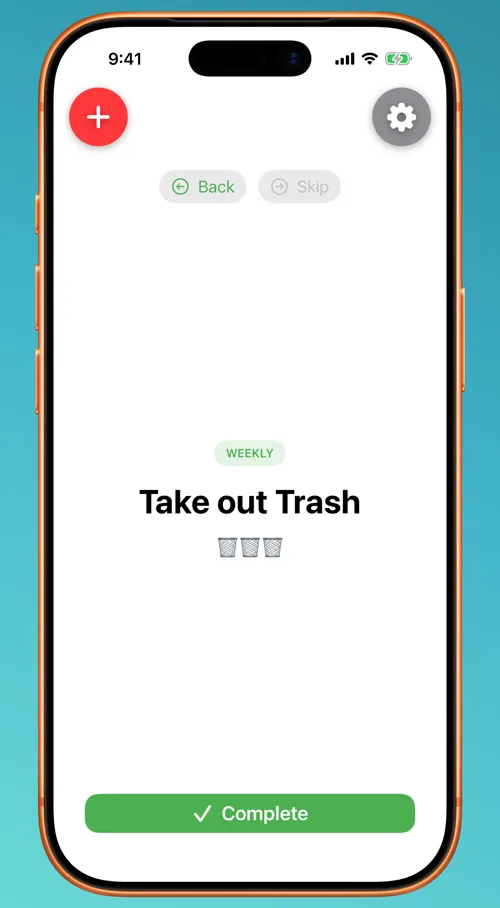
Plain
Smart Prioritization
Give each task a priority from 1 (highest) to 5 (lowest) and Singl handles the rest. Priority-1 tasks appear 10× more often than priority-5 tasks, so the work that actually matters rises to the top — no list juggling, no decision fatigue.
Smart Recurrence
Tasks repeat on any interval from hourly to yearly. One-time tasks disappear automatically seven days after completion. Set a Show After date and time to hide a task until a specific moment — schedule something for Monday morning and it simply won't appear until then.
Home Screen & Lock Screen Widget
Small and medium Home Screen widgets surface the current task at a glance. The medium widget shows the task title, notes, and two action buttons: tap the circle to complete it, or tap → to skip to the next due task — all without opening the app. Lock Screen widgets keep the current task a glance away even when your phone is locked.
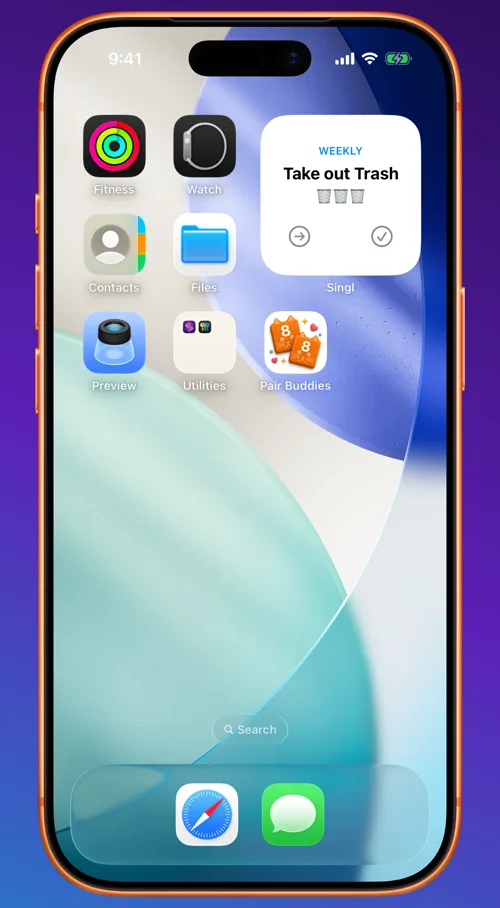
Light
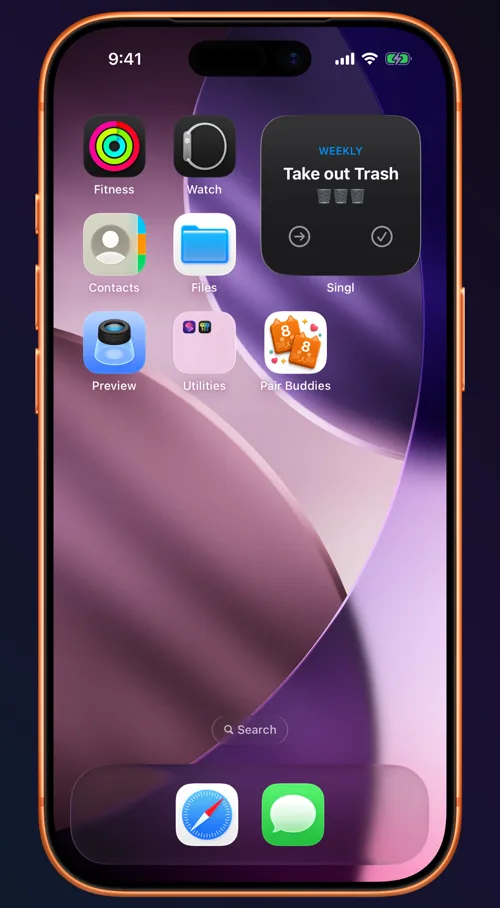
Dark
Gestures
Double-tap the task card to complete it with a satisfying haptic and checkmark animation. There is also a circle button below the card. Swipe left or right to skip to the next task — the card translates and rotates during the drag and flies off screen past 80 pt. Shake drops the current card with a gravity tumble and springs the next one in. The Skip button flips to the next task with a smooth 3D playing-card animation. The Back button lets you return to the previous task.
Card Styles
Choose how the task card looks in Settings → Options → Style. Four options: Card — a rounded rectangle with a drop shadow and border. Note — a yellow sticky note with a page-curl effect. Paper — a torn-edge page with ruled lines and a red margin. Plain — no frame at all, just the text. Switch any time without affecting your tasks.
Fireworks & Appearance
Clear every task that's currently due and Singl celebrates with a fireworks burst — a small reward that makes finishing genuinely satisfying. The completion checkmark and fireworks can each be toggled in Settings, and the whole app follows your choice of Light, Dark, or System appearance — widget included.
Reminders Import
Pull your Apple Reminders into Singl in a few taps. Choose which list to sync, and Singl keeps it up to date — existing tasks are updated on re-sync so you won't get duplicates. Future due dates carry over as Show After times. Local edits are never overwritten — Singl only touches tasks it originally imported.
Siri & Shortcuts
Two App Intents ship out of the box: Add Task creates a new task by voice (with optional notes and recurrence), and Complete Current Task closes whatever is showing without unlocking your phone. Both are exposed as Shortcuts actions and come with preset Siri phrases.